

IDE vs Code Editor Choosing the Right Development Tool
When you get down to it, the whole IDE vs. code editor debate boils down to one thing: scope. An Integrated Development Environment (IDE) is a full-blown software suite, packing everything you need—a code editor, debugger, compiler, and build tools—into one cohesive package. A code editor, on the other hand, is a much lighter tool focused purely on writing and editing code, relying on plugins for anything fancier.

Understanding the Core Differences
Think of an IDE as a fully-equipped professional workshop. It has every tool a developer could possibly need for a massive project, all neatly organized under one roof. You write your code, compile it, debug it, and run tests without ever leaving the environment. This tight integration is a lifesaver for complex, language-specific work like enterprise Java development in IntelliJ IDEA or .NET projects in Visual Studio.
A code editor is more like a customizable toolbox. It starts out as a simple, blazing-fast text editor, and you add only the tools you actually need via extensions. This makes it incredibly flexible and lightweight, perfect for web development, scripting, or juggling multiple programming languages at once in something like VS Code or Sublime Text.
The Trade-Off Between Integration and Flexibility
The real question isn't which one is "better," but which philosophy fits your workflow. IDEs are built for deep, out-of-the-box power. They offer a cohesive experience tailored to a specific ecosystem, which means a steeper learning curve and more system resources, but the payoff in productivity for large-scale projects is huge.
Code editors, conversely, are all about speed and flexibility. Their minimalist design means they start up instantly and use less memory. You can build a completely personalized environment with a vast ecosystem of extensions, but getting it to an IDE's level of functionality requires some manual setup and can sometimes feel less polished.
The decision between an IDE and a code editor is a classic trade-off between a specialized, all-inclusive toolkit and a lightweight, modular one. Your choice fundamentally shapes your development workflow, balancing integrated power against nimble flexibility.
To make this even clearer, here's a quick breakdown of how they stack up against each other.
IDE vs Code Editor at a Glance
This table sums up the fundamental differences between a heavy-hitting IDE and a nimble code editor.
| Characteristic | IDE (e.g., IntelliJ, Visual Studio) | Code Editor (e.g., VS Code, Sublime Text) |
|---|---|---|
| Primary Focus | Comprehensive software development lifecycle | Fast and efficient code writing and editing |
| Core Components | Bundles editor, compiler, debugger, build tools | Primarily a text editor; other tools via extensions |
| Performance | Slower startup, higher resource usage | Very fast startup, lower resource usage |
| Setup & Config | Minimal setup, features work out-of-the-box | Requires configuration and installation of extensions |
| Flexibility | Less flexible, often language-specific | Highly flexible, supports many languages via plugins |
| Use Case | Large, complex, single-language projects | Web development, scripting, multi-language projects |
Ultimately, there's no wrong answer—only the right tool for the job at hand.
Comparing Features That Define Your Workflow

The real divide in the IDE vs. code editor debate isn't about a simple feature checklist. It's about how those features shape your day-to-day work. The tools you use can either get out of your way and let you build, or they can become a source of constant friction. It’s not about which tool has more features, but how they’re delivered and whether they fit what you’re trying to do.
An IDE's whole pitch is its all-in-one, deeply integrated toolkit that just works from the moment you launch it. On the flip side, a code editor gives you a stripped-down, fast core that you build up yourself with extensions. This one difference changes everything, from how you write code to how you hunt down bugs.
Intelligent Code Completion and Analysis
How a tool helps you write code is one of the first things you'll notice. IDEs are famous for their deep, almost intuitive understanding of a language.
Take an IDE like IntelliJ IDEA. It doesn't just guess variable names; it builds a complete map of your entire project. This indexing process lets it offer incredibly smart suggestions, warn you about potential null pointer exceptions, and suggest refactors that it knows won't break things across dozens of files.
Code editors like VS Code get there with extensions. The difference is in the setup and the depth. A properly tuned VS Code with the right language server extensions provides powerful IntelliSense, but it’s leaning on community-built plugins. That modularity is a huge plus for flexibility, but the integration can sometimes feel less seamless than the native, cohesive analysis an IDE provides out of the box.
An IDE’s intelligence is baked in, offering deep semantic understanding of a project from the start. A code editor’s intelligence is built on, providing incredible flexibility but requiring manual setup and trusting that different extensions will play nice together.
Integrated Debugging and Build Tooling
Debugging is where an IDE really flexes its muscles. Setting up a debugger in an IDE is usually a non-event. You set a breakpoint, hit a button, and the IDE handles everything—compiling, running, and attaching the debugger—behind the scenes. For digging into complex bugs in big applications, this smooth workflow is a lifesaver.
In a code editor, debugging is almost always an add-on. You'll need to find and install a debugger extension, then create a configuration file (like launch.json in VS Code) to tell the editor how to run your app. It’s incredibly customizable, but it’s also another thing to learn and manage, which can be a real stumbling block, especially for developers just starting out in a new language.
Let's look at the actual experience:
-
IDE (e.g., Visual Studio for a .NET project)
- Setup: Click the "Run with Debugger" button. That’s it.
- Experience: The IDE compiles the project, launches the app, and attaches the debugger automatically. You get integrated consoles, watch windows, and call stacks immediately, no fuss.
-
Code Editor (e.g., VS Code for a Node.js project)
- Setup: Install the Node.js debugger extension. Create a
launch.jsonfile to define your entry script and any command-line arguments. - Experience: Once it's configured, the debugging is powerful and rich. But getting there takes manual effort and an understanding of the build commands happening under the hood.
- Setup: Install the Node.js debugger extension. Create a
This contrast gets to the heart of the trade-off: an IDE is built for an effortless, "batteries-included" experience, while a code editor gives you a lightweight core and the freedom to add only what you need.
Refactoring and Project-Wide Changes
Refactoring—changing the structure of your code without changing what it does—is another area where IDEs typically shine. Because an IDE holds a complete index of your entire project, it can perform massive, project-wide changes with a high degree of confidence.
Think about renaming a key class that's used in 50 different files in a huge Java project. In IntelliJ, this is a simple, safe operation. The IDE understands the language and the project structure, so it can guarantee every single reference is updated correctly.
A code editor can do this too, usually with extensions that rely on the Language Server Protocol (LSP). The LSP brings language-specific smarts to any editor, but its refactoring tools might not be as deep as a dedicated IDE's. Simple renames usually work perfectly, but more complex operations might lack the full contextual awareness of a tool built from the ground up for that one language.
Version Control Integration
These days, both modern IDEs and code editors have fantastic version control integration, especially with Git. Here, the difference isn't so much about what you can do, but how you do it.
IDEs often provide a very visual, comprehensive interface for version control. You get dedicated windows with commit histories, fancy branch visualizations, and powerful merge conflict resolution tools built right into the UI.
Code editors, and VS Code in particular, tend to offer a more minimalist, keyboard-driven Git workflow that many developers love for its speed. The essentials are right there in the side panel, and extensions like GitLens add incredibly useful features like inline blame annotations and deep repository exploration. The choice here is really about personal taste: do you want a rich GUI or a fast, streamlined command-line feel?
How Your Choice Impacts Performance and Productivity
The whole IDE vs code editor debate really boils down to a trade-off: do you want immediate speed or long-term efficiency? The tool you pick directly shapes how fast you can start coding, how well your machine performs, and ultimately, how productive you are on different kinds of projects. It's a classic tension between the raw agility of a lightweight editor and the brute force of a fully integrated environment.
A code editor's biggest claim to fame is its speed. Tools like VS Code or Sublime Text are built to launch in a heartbeat and sip system resources. This is a game-changer for anyone who constantly hops between projects, needs to make a quick config file tweak, or is working on a machine that's low on RAM.
The lightweight approach means you start with a clean slate, which is why they load so fast. You only pull in the features you need, right when you need them. That responsiveness gives you a huge productivity kick for tasks that don't demand a heavy, project-wide analytical engine running in the background.
The Upfront Cost of IDE Power
On the flip side, a full-blown IDE like IntelliJ IDEA or Visual Studio often takes its sweet time to start up. The reason for that lag is also one of its greatest strengths: project indexing. When you open a big codebase, an IDE gets to work meticulously scanning every single file, class, method, and dependency to build a complete "map" of your entire project.
This initial indexing can be a real resource hog, eating up a good chunk of CPU and memory. For a massive enterprise application with hundreds of thousands of lines of code, you might be waiting several minutes. But that upfront investment is what unlocks the IDE’s killer productivity features—think intelligent refactoring, pinpoint-accurate code navigation, and deep debugging that just works.
The initial slowness of an IDE isn't a flaw; it's the price of admission for deep, project-wide intelligence. It trades a few minutes of startup time for hours of saved effort during complex development and debugging sessions.
This performance gap creates two very different workflows. The code editor is your best friend for rapid context-switching. The IDE provides a powerful, stable fortress for deep, focused work inside a single, complex project.
Measuring the Productivity Payoff
So where does the rubber meet the road on productivity? It's completely situational. For instance, studies show the native integration of advanced debuggers and safe refactoring tools in IDEs can boost developer output by 20-30% on large, complex codebases. But you can't ignore the fact that editors like VS Code can load up to 5x faster—a massive advantage for the roughly 70% of developers who now juggle different languages and cloud-native projects daily. You can find more stats on tool popularity in PYPL's IDE index.
This data gets to the heart of the dilemma. An IDE’s integrated toolkit lowers the cognitive load for solving hard problems because everything you need is already connected and ready to go. You spend less time fighting with your setup and more time writing and debugging actual business logic.
A code editor, however, wins on pure versatility. A developer working on a Python script, a React frontend, and a Docker configuration file all in the same afternoon will find the instant-on nature of VS Code indispensable. The productivity gain isn't from deep integration, but from the tool's ability to adapt on the fly without the overhead of a rigid, language-specific project model.
Ultimately, your choice depends entirely on your main workflow. Are you a specialist diving deep into a single, massive Java application? The IDE's sustained power will almost certainly serve you better. Or are you a generalist navigating a diverse tech stack? The code editor's agility and speed will make you far more productive.
Matching Your Tool to Your Project and Team
The whole IDE vs code editor debate isn't about which tool is better—it's about which tool is right for the job. The perfect setup for a solo developer cranking out portfolio projects looks completely different from what an enterprise team needs to manage a massive, legacy application. Your choice here has real consequences for collaboration, how quickly new hires can get up to speed, and your team's overall momentum.
Picking the right tool means you need to be honest about who is building what. Your editor or IDE is a core part of understanding your overall tech stack and how everything works together to hit your goals. The wrong tool creates friction. The right one makes your team feel unstoppable.
The Solo Developer and Small Team Scenario
For individual devs, small startups, or nimble teams hammering away on web projects, a code editor like VS Code usually hits the sweet spot. It's fast, flexible, and its massive plugin library means you can tailor it to almost any task without getting bogged down.
Think about a full-stack dev who spends their morning in a React frontend, their afternoon in a Node.js backend, and then jumps into a Python script for some data work. A code editor lets them flip between those worlds without firing up three different resource-hungry IDEs. That kind of agility is everything when you're trying to prototype and ship fast.
- Key Advantage: You get incredible flexibility to build a personalized, multi-language setup that does exactly what you need and nothing more.
- Best For: Web development (JavaScript, TypeScript, Python), scripting, data science, or any project where you're constantly switching contexts.
- Why it Works: You only install the extensions you need. This keeps your environment lean and fast while still giving you powerful features like IntelliSense and debugging when you need them.
The Enterprise and Specialized Team Environment
On the flip side, huge enterprise teams almost always standardize on a single, heavy-duty IDE. When you have hundreds of developers all touching the same enormous Java or .NET codebase, the out-of-the-box power and enforced consistency of an IDE like IntelliJ IDEA or Visual Studio is non-negotiable.
An IDE creates a unified development experience for everyone. It guarantees every single developer has the same powerful debugging tools, refactoring engines, and build configurations from day one. This makes onboarding new hires way easier and kills the dreaded "it works on my machine" problem that haunts less structured setups. Plus, its deep, project-wide indexing is a lifesaver for big refactors that would be terrifying to attempt in a simpler tool.
For enterprise-scale projects, an IDE isn't just a tool—it's a platform for consistency. It ensures every team member operates from a shared, powerful foundation, which is critical for maintaining quality and velocity in complex codebases.
The Rise of the Hybrid Workflow
More and more, the debate isn't about picking just one. Many professional developers now use both, playing to the strengths of each. This hybrid approach has become so common that it's fundamentally changing how we work.
This decision tree helps visualize that core trade-off between speed and power when picking your main tool.
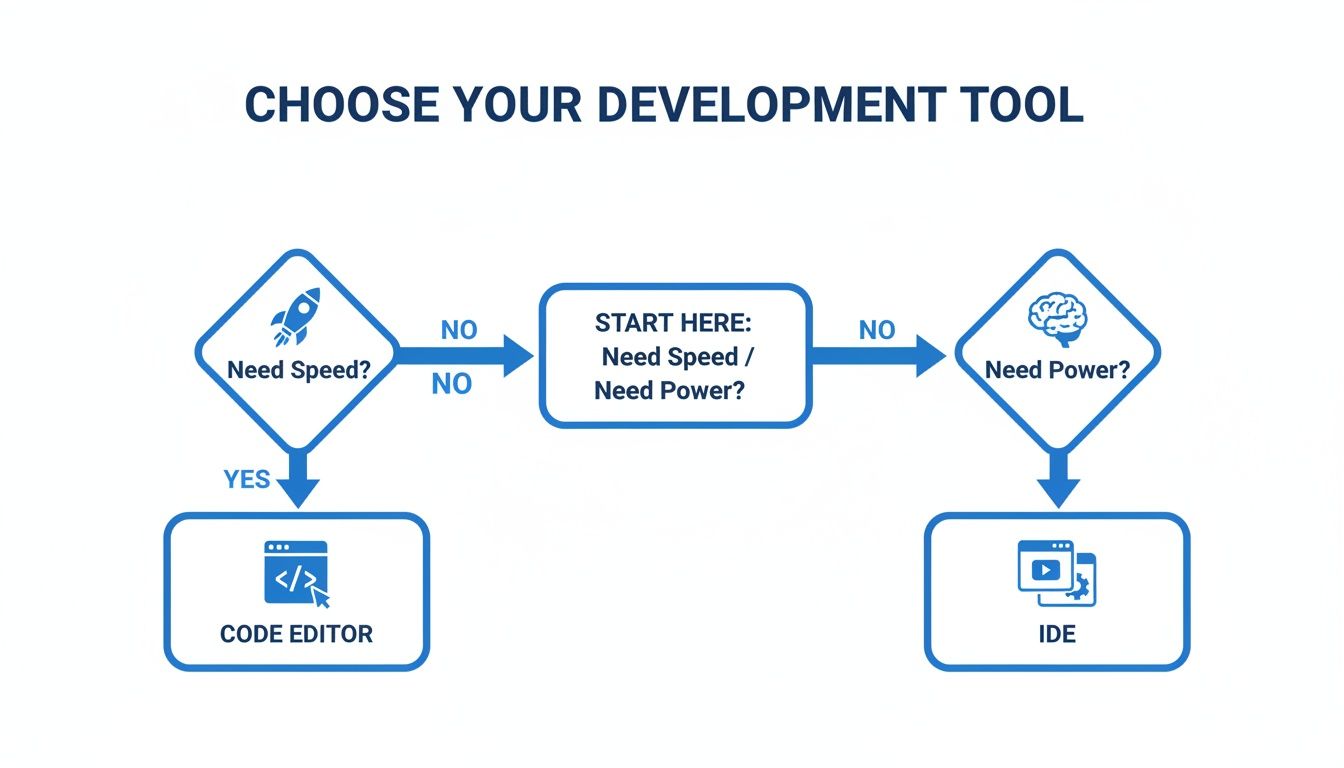
As the flowchart shows, the first question is always about prioritizing either the raw agility of a code editor or the all-in-one power of an IDE.
But the real world is messy. A Java developer, for example, might live in IntelliJ IDEA for their main application work. But they'll still pop open VS Code to quickly edit a YAML config file, write a quick shell script, or look at a PR from another team's repo. This isn't just a hunch; the data backs it up.
According to a 2023 developer productivity report, 42% of Java devs now juggle multiple IDEs. And among those who primarily use IntelliJ, a whopping 68% also use VS Code as their secondary tool. This cements its role as the perfect sidekick for tasks outside the main project. The hybrid model gives you the best of both worlds: the focused power of an IDE for deep work and the nimble speed of a code editor for everything else. As teams bring more automation into the mix, understanding how AI for code fits into each of these environments becomes absolutely critical.
Integrating AI Assistants into Your Coding Environment

The explosion of AI coding assistants is completely changing the IDE vs code editor conversation. These tools are no longer just glorified autocomplete; they're becoming active partners in the development process. But how they plug in and what they can do looks wildly different in a lightweight code editor compared to a full-blown IDE.
In a code editor like VS Code, AI assistants are nimble, powerful extensions. They add a ton of value without bogging down the minimalist experience, offering intelligent code generation, real-time suggestions, and even natural language-to-code translation. This setup keeps the editor fast and flexible while layering on serious AI power.
AI Augmentation in Code Editors
The extension model means you can build your own AI toolkit. You might use one assistant for generating boilerplate and another for debugging, creating a setup that’s perfectly tuned to how you work. It’s all about enhancing your existing process, not forcing you into a new one.
This approach has some clear advantages:
- Modularity: You can install, disable, or swap out different AI tools as your projects change.
- Performance: The lightweight nature of extensions keeps your editor snappy, which is critical when you’re juggling multiple projects or just need to make a quick change.
- Customization: Developers can mix and match AI with their favorite themes, keybindings, and other plugins to create their ideal environment.
But this freedom comes with a price. Managing a handful of AI extensions and making sure they play nicely together is on you. The real problem emerges when AI is writing huge chunks of your code without any built-in oversight, raising serious questions about quality and security. As these tools get smarter, it pays to learn effective ways to query AI for deeper insights to get the most out of them.
Deep AI Integration Within IDEs
Jump over to a full-featured IDE, and AI integration feels much deeper and more baked-in. Instead of being a simple add-on, AI becomes a core part of the IDE’s powerful analytical engine. This allows the AI to tap into the IDE's complete, project-wide index, delivering context-aware suggestions that leave basic code completion in the dust.
In an IDE, AI isn't just a code generator; it's a governance and security partner. It leverages the IDE’s comprehensive project knowledge to enforce standards, catch complex bugs, and ensure compliance before code is ever committed.
This tight integration unlocks capabilities that are nearly impossible for standalone extensions. For instance, an AI assistant inside an IDE can propose a complex refactoring that touches dozens of files, confident it won’t break anything. It can run advanced security scans, flagging vulnerabilities based on a holistic understanding of your entire application architecture. To really get into the weeds on this, check out our guide on AI-powered IDEs and how they’re changing the game.
For teams, this is where the real magic happens. A platform like kluster.ai runs directly inside the development environment, providing real-time code review for AI-generated code. By integrating with the IDE, it automatically enforces your company’s specific guardrails, security policies, and even naming conventions. This ensures that even as developers move faster with AI, the code stays secure, compliant, and true to team standards—closing the gap between AI-driven speed and enterprise-grade control.
What Developers Actually Use
Theory is one thing, but the real story in the IDE vs code editor debate comes from what developers have open on their screens every day. If you look at market trends and survey data, a clear pattern emerges: mass adoption for one category, and deep-rooted loyalty in another.
Look across the entire development landscape, and one tool absolutely dominates. Lightweight, extensible code editors, with Visual Studio Code leading the charge, have captured the overwhelming majority of the market. Their appeal is simple: flexibility. They're built to be language-agnostic, making them a perfect fit for web developers, data scientists, and anyone who juggles multiple tech stacks.
The Unstoppable Rise of VS Code
For years, Stack Overflow's developer surveys have crowned VS Code the undisputed king, and recent data just solidifies its lead. One analysis put VS Code usage at over 74% among professional developers—that’s more than double its nearest competitor. This isn't just a popularity contest; it's a testament to a massive, active community building extensions, sharing configs, and offering support. You can dive into the community discussion around these findings to see just how deep its roots go.
This popularity creates a powerful flywheel. The more people use VS Code, the more incentive companies have to build top-tier extensions, which in turn makes the ecosystem even more compelling.
While code editors like VS Code have won the general-purpose popularity contest, specialized IDEs maintain an unshakeable grip on high-stakes ecosystems where deep, native integration is everything.
Where Dedicated IDEs Still Reign Supreme
Despite the massive adoption of code editors, powerful IDEs remain the bedrock of certain professional domains. For them, broad appeal is far less important than deep, specialized power. Take the Java and Kotlin world, for example, which is completely dominated by JetBrains' IntelliJ IDEA. It understands the JVM ecosystem on a level that a general-purpose editor simply can't touch, offering refactoring, debugging, and code analysis that are second to none.
It's a similar story in the .NET ecosystem, where Microsoft's Visual Studio is still the gold standard. Its seamless integration with the entire .NET framework—from web to desktop to mobile—makes it the default choice for enterprise teams building on the Microsoft stack. These tools don't win by being everything to everyone. They win by being the absolute best at a specific, complex job, proving that sometimes, deep expertise beats broad flexibility.
Common Questions About IDEs and Code Editors
When you're picking a primary development tool, there's always a bit of confusion to clear up. The whole IDE vs code editor debate brings up the same few questions time and time again, especially for developers just trying to figure out their options. Getting these answers straight helps you see the real-world differences, not just what's on a feature list.
A big one people ask is whether a code editor can really become a full-blown IDE just by piling on extensions. The answer is... sort of. You can definitely customize a tool like VS Code with plugins for debugging, linting, and language support to get pretty close to what an IDE offers, but it's not a perfect match. That modular approach means you're the one managing and configuring everything.
The real difference is integration. An IDE’s tools are built to work together from the ground up. That synergy often delivers a level of performance and contextual awareness that a random collection of extensions just can't replicate.
What Should Beginners Use
For someone just starting out, a simple code editor is usually the way to go. Its minimalist design forces you to learn the fundamentals, like using the command line to compile and run your code. An IDE can hide those steps, which is great for speed later on but can rob a learner of crucial foundational knowledge.
On the other hand, some argue an IDE is better for beginners. Its built-in debugger and simple setup can let a new programmer focus purely on logic without getting bogged down by environment configuration headaches. It really comes down to the person's learning style and the specific language they're tackling.
Are Powerful IDEs Always Expensive
That's a pretty common myth. While top-tier IDEs like the JetBrains suite do have a subscription fee, the market is full of incredibly powerful, free alternatives.
You've got some heavy hitters that don't cost a dime:
- Visual Studio Community: A free, full-featured IDE from Microsoft for .NET and C++ development on Windows.
- Eclipse: A long-time open-source favorite, especially within the Java community.
- NetBeans: Another solid, open-source IDE that’s also very popular for Java development.
These tools offer enterprise-level features for free, making high-powered development environments available to absolutely everyone.
Dealing with AI-generated code introduces a whole new layer of complexity that needs a new kind of oversight. kluster.ai plugs directly into your IDE, giving you real-time code review that catches errors, enforces security policies, and ensures compliance before the code even gets committed. Start for free at https://kluster.ai and bring instant verification and consistent team standards to your AI-powered workflow.